Home
News
Our Products
Downloads
Purchase
Contact Information
About Us
Nessoft logo
Knowledgebase Top : PingPlotter : Alerts
Logging data to text file.
ID: 000026
Rating: 5.0 / 5.0 (6 votes)
 
Views: 2406

Question

How do I log data to a live file as it is being collected?


Answer

Both MultiPing and PingPlotter can use the alert system to log live data (as it is being collected) to a text file.

This technique requires setting up an alert with an event to "Log to file", setting the parameters on the alert to always fire, and then associating the alert to the targets you want to log.

Create the alert:

  • In either MultiPing or PingPlotter, go to Edit -> Alert Setup...
  • Create a new alert by hitting the "New" button.
  • Pick an alert name, ie: "Always log to file"
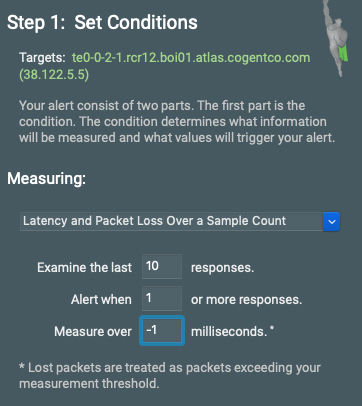
  • Set "Samples to Examine:" to 10, Alert when "1" or more samples are over "-1" ms. Yes, that's a negative 1. This means the alert will always fire - on every sample.
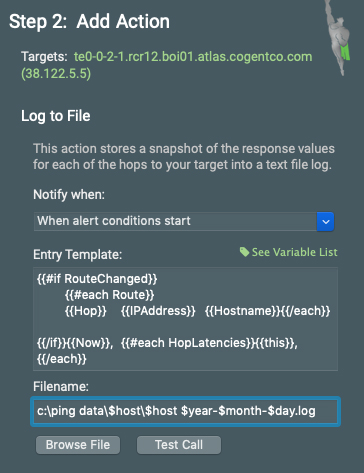
  • In "Event 1", set the "Event Type" to Log to file.
  • Enter a variable filename. You might use c:\ping data\$host\$host $year-$month-$day.log. This will put each host's data in its own directory, and will put each day's worth of data into its own log file. ****IMPORTANT**** Make sure the first level directory already exists, in this case, the "c:\ping data\" directory. The tool will only create the very tip directory, ensuring that a typo doesn't cause a bunch of errant directories to be created.
  • Close the alert dialog by hitting "OK".

Associate the alert to a target:

A newly created alert will not automatically monitor any targets, you need to configure which targets you want it to monitor.

  • In MultiPing or PingPlotter, start pinging or tracing to a target.
  • Right-click on the host you want to "Watch" (or, in this case, which host you want data logged for).
  • From the right-click menu, select "Watch this host (Alerts)...".
  • In the popup dialog, move your newly configured alert to the "Selected Alert(s)" side of things
  • Close the dialog.

OK, all your data should now be logged to file! If you want more information about configuring alerts, visit our tutorial and look at the alerts section, or check out the alert troubleshooting section.


Rating
Did you find this article helpful? 

Related Articles
All hops show 100% packet loss
All intermediate hops show 100% packet loss
Errors when running Kaspersky Antivirus
Determining the IP Address of a network service
Some columns not visible on trace graph.

E-mail us