

Knowledge Base
Router problems with outstanding requests.
Question
My router is showing odd packet loss numbers that TRACERT doesn't show. I've heard of problems with this router servicing multiple oustanding ICMP echo requests. How can I configure PingPlotter to only do one oustanding packet at a time?
Solution
PingPlotter can be configured to only do one outstanding request, although PingPlotter data collection performance will suffer. Some routers do behave poorly when multiple requests are outstanding (i.e., multiple requests have been sent out where replies have not been received), though, so changes might be required to get rid of invalid packet loss and latency numbers.
- Launch PingPlotter.
- Open the options dialog (Edit -> Options). Select the 'Packet' or 'Engine' section (depending on version of PingPlotter).
- Make sure 'Packet Type' is set to ICMP.
- Review the 'Time to wait for ping replies (in ms.)' setting. If you never expect a hop to take more then 1 second to respond, enter 1000 here. Try to set it to the lowest reasonable number. The lower this number is, the less timeouts will pause your tracing.
- Change the 'Packet send delay' to 0. (This ups the performance somewhat, isn't necessary, but very helpful).
- Turn *ON* 'Use non-threaded Name Lookups'
- Change 'Maximum concurrent requests' to 1 (the default is 45).
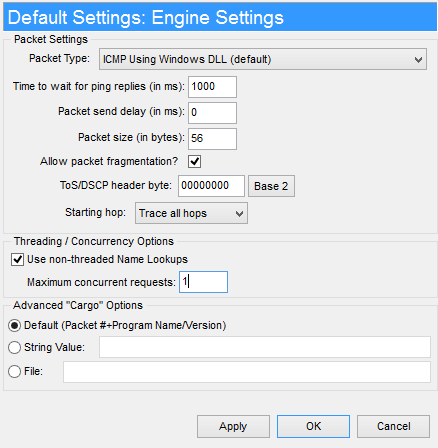
Using these settings will make sure there is never more than one sample out at a time, and might increase the reliability of your data. If this does make a difference in the routers that are reporting back, you might want to look at possibly upgrading the bios on your router / firewall as this issue may have been corrected by your hardware manufacturer.